WEBP vs JPG: Which Image Format Should You Use?
Every few years, a "new image format" arrives promising to replace JPG. Most fizzle out. WebP didn't. It quietly became the standard for anyone serious about web performance, and now it's supported everywhere that matters.
Still, I see developers treat this as an all-or-nothing decision — either go full WebP or ignore it entirely. That's a mistake in both directions. I recently helped optimize an online store that was serving every product image as high-quality JPG. Converting those same images to WebP at a comparable quality setting shaved roughly a third off each file. On pages showing dozens of products, the bandwidth difference was substantial enough to noticeably improve mobile load times.
But when that same client asked me to convert their email newsletter images to WebP, I said no. Gmail would have broken them.
That's the real story here. WebP isn't universally better — it's contextually better. This guide explains exactly where that context line falls.
Understanding the Two Formats
What Is JPG (JPEG)?
JPG — technically JPEG, short for Joint Photographic Experts Group — has been the default format for photographs on the web since the mid-1990s. It uses lossy compression, meaning it permanently discards some image data to achieve smaller file sizes. The trade-off is controlled quality loss that's barely visible at moderate compression levels.
The format works by dividing images into 8×8 pixel blocks and applying a mathematical transformation (Discrete Cosine Transform) that separates essential visual information from details the human eye barely notices. At quality settings between 70-85%, most people can't tell the difference between the original and the compressed version.
What Is WebP?
WebP is Google's image format, released in 2010 as part of their broader effort to speed up the web. It uses more advanced compression techniques — both lossy and lossless — derived from the VP8 video codec. The result is typically smaller files at equivalent visual quality compared to JPG.
What makes WebP interesting is its flexibility. A single format supports lossy compression (like JPG), lossless compression (like PNG), and even animation (like GIF) — all with an alpha transparency channel. It's essentially a Swiss Army knife format that does everything the older formats do, often better.
Head-to-Head Comparison
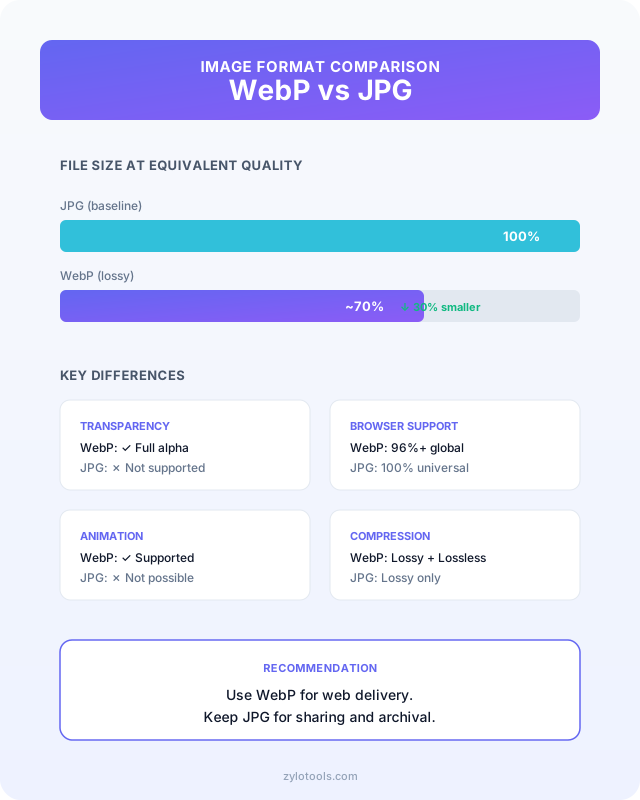
| Feature | WebP | JPG |
|---|---|---|
| Compression Type | Lossy + Lossless | Lossy only |
| Typical File Size | 25-34% smaller | Baseline reference |
| Transparency | ✅ Full alpha channel | ❌ Not supported |
| Animation | ✅ Supported | ❌ Not supported |
| Browser Support | 96%+ globally | 100% universal |
| Color Depth | 24-bit (lossy), 32-bit (lossless) | 24-bit |
| Encoding Speed | Slower | Faster |
| Decoding Speed | Comparable | Fast |
| Editing Software | Growing support | Universal support |
| Max Resolution | 16383×16383 | 65535×65535 |
File Size: Where WebP Really Shines
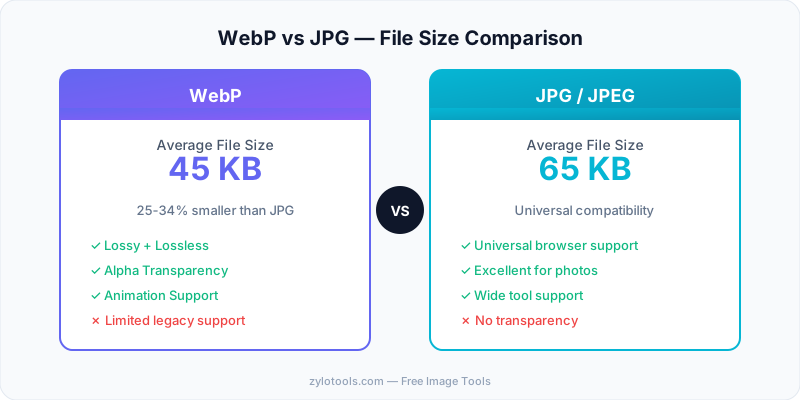
The most compelling reason to use WebP is file size. In real-world tests across thousands of images, WebP consistently produces files 25-34% smaller than JPG at equivalent visual quality. For a website loading 20 images per page, that's a significant bandwidth saving that directly impacts load time.
Here's what the difference looks like in practice:
- A 500KB JPG photo typically becomes 330-375KB in WebP — saving roughly 150KB per image
- Product photography (e-commerce) sees 25-30% savings on average
- Landscape photographs with complex detail save 28-34%
- Simple graphics with flat colors can save 40%+ using WebP lossless mode
Those percentages might sound modest individually, but multiply them across an entire website and the impact on Core Web Vitals is substantial. A page that loads 2MB of JPG images could serve the same visual quality in roughly 1.4MB of WebP — shaving 600KB from the initial page weight.
Something I noticed while testing
I took a folder of product photos from a real e-commerce project — mostly white-background shots of clothing and accessories — and batch-converted them from JPG to WebP at a similar quality level. The average file size dropped by roughly a quarter to a third. Not revolutionary for any single image, but across an entire category page loading twenty-plus thumbnails, the total savings added up to over a megabyte less per page view.
Nobody on the team could spot a quality difference. We only noticed when checking the Network tab in DevTools.
Visual Quality: Can You Tell the Difference?
At equivalent file sizes, WebP and JPG look nearly identical to the naked eye. The differences only become apparent under specific conditions:
- Heavy compression (quality <50): JPG produces visible block artifacts in 8×8 pixel squares. WebP's artifacts are smoother and less distracting — they appear as gentle blurring rather than sharp blocks.
- Fine text over photos: WebP handles text overlays slightly better at low quality settings because its compression doesn't follow rigid block boundaries.
- Gradients and smooth areas: Both formats can show banding at very low quality, but WebP's banding is typically less noticeable.
For quality settings above 70 (which is where most web images live), the visual difference between WebP and JPG is imperceptible without zooming in and comparing pixel-by-pixel. Choose based on file size, not perceived quality at these levels.
Browser Support in 2026
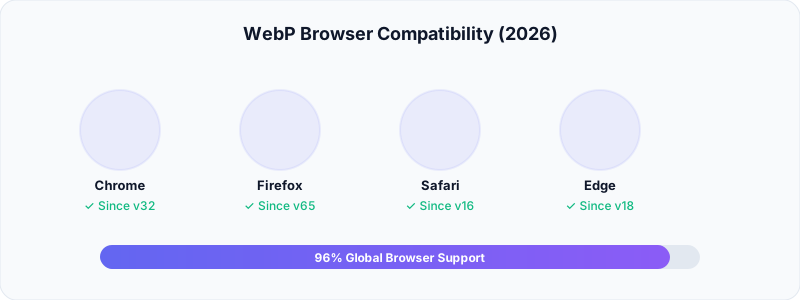
The browser support argument against WebP is essentially over. As of 2026, WebP is supported by:
- Chrome: Full support since version 32 (2014)
- Firefox: Full support since version 65 (2019)
- Safari: Full support since version 16 (2022) — this was the last major holdout
- Edge: Full support since version 18 (2018)
- Opera, Brave, Samsung Internet: Full support
Global browser support now exceeds 96%. The only users who can't view WebP are those on very old Safari versions (pre-2022 macOS/iOS devices that haven't been updated) or extremely legacy systems. For most projects, this edge case can be handled with a simple <picture> element fallback.
When to Use WebP
My general rule: if the image's final destination is a web page, use WebP. The exceptions below are specific and narrow. For the vast majority of web projects in 2026, WebP should be your default.
WebP is the better choice when:
- Page speed is a priority — e-commerce, news sites, image-heavy blogs
- You control the image pipeline — you can generate WebP during build or upload
- You need transparency in photos — product images with transparent backgrounds (WebP replaces the need for large PNGs)
- You want animated images — WebP animations are much smaller than GIFs
- SEO matters — Google explicitly recommends WebP for better page speed scores
- Mobile users are a significant audience — smaller files mean faster loading on cellular networks
When to Stick with JPG
JPG remains the practical choice when:
- You're sharing files via email or messaging — every device and application opens JPG without issues
- You're working with print workflows — print shops and design software universally support JPG; WebP support in print is still inconsistent
- Maximum compatibility is non-negotiable — government systems, healthcare portals, and legacy enterprise software often only accept JPG/PNG
- You need to edit images repeatedly — re-encoding WebP multiple times introduces more quality loss than JPG at equivalent settings
- Your CMS or platform doesn't support WebP — some older WordPress themes, email clients, and social media platforms don't handle WebP uploads
How to Convert Between Formats
If you've decided to switch to WebP for your website, converting existing images is straightforward. Our free WebP Converter handles both directions — JPG to WebP and WebP to JPG — directly in your browser without uploading files to any server.
For bulk conversion workflows:
- Single images: Use the WebP Converter for quick one-off conversions
- Batch processing: Tools like cwebp (Google's command-line tool) handle hundreds of files
- WordPress sites: Plugins like ShortPixel or Imagify auto-convert uploads to WebP
- CDNs: Cloudflare, Cloudinary, and imgix can serve WebP automatically to supported browsers
If you also need to resize images before converting, the Image Resizer lets you set exact dimensions first, then you can convert the format. For reducing file size without changing dimensions, the Smart Image Compressor gives you fine-grained control over the quality-size balance.
The Best Approach: Serve Both
The gold standard for web development is serving WebP to browsers that support it and JPG as a fallback. HTML's <picture> element makes this painless:
<picture>
  <source srcset="photo.webp" type="image/webp">
  <img src="photo.jpg" alt="Description" loading="lazy">
</picture>
The browser picks the first source it supports. Modern browsers get WebP (smaller, faster), while the rare legacy browser falls back to JPG. No JavaScript needed, no user-agent detection — it just works.
💡 Pro Tip: If you use a CDN like Cloudflare, enable "Polish" with WebP conversion. It automatically serves WebP to supported browsers from your existing JPG/PNG files — zero code changes needed. Cloudinary and imgix offer similar auto-format features. This is the lowest-effort path for existing websites that already have hundreds of JPGs in place.
Here's something most tutorials skip
The <picture> element fallback only matters for initial page loads. If you're using a CDN that auto-converts, the CDN handles format negotiation via the Accept header — the browser never even sees a fallback. For WordPress sites, plugins like ShortPixel or Imagify handle conversion at upload time and serve the right format automatically. Either approach works. The WordPress route took me about fifteen minutes to set up on a client blog with years of archived posts, and the improvement in PageSpeed scores was immediate.
Impact on SEO and Core Web Vitals
Google's PageSpeed Insights explicitly flags opportunities to serve images in "next-gen formats" like WebP. Switching from JPG to WebP typically improves:
- Largest Contentful Paint (LCP): Smaller images load faster, directly improving this Core Web Vital
- Total Blocking Time: Less data to decode means the main thread is freed up sooner
- Page weight: Reducing total page size improves the experience for users on slow connections
For a typical blog post with 5 images totaling 2MB in JPG, converting to WebP saves roughly 500-700KB. On a 3G mobile connection, that translates to 2-3 seconds faster load time — enough to meaningfully reduce bounce rate.
Three Things Developers Still Get Wrong About WebP
Even after sixteen years, misinformation about WebP circulates in Stack Overflow threads and blog comments. Here are the claims I still hear regularly — and why they're wrong.
"WebP looks worse than JPG"
No. At identical file sizes, WebP actually produces fewer visible artifacts. The confusion usually comes from comparing mismatched quality settings — someone exports WebP at quality 50 and compares it against JPG at quality 85, then concludes "WebP looks bad." Match the settings and WebP wins on perceptual quality every time. Google's original research paper showed this with SSIM scoring across thousands of test images.
"Safari doesn't support it"
This hasn't been true since September 2022. Safari 16 added complete WebP support on both macOS and iOS. The only people affected in 2026 are running pre-2022 Apple devices that have never received a software update — a vanishingly small group. Unless you're building for medical devices or government kiosks frozen in time, Safari support is no longer a blocker.
"Lossless WebP is always better than JPG for quality"
Lossless WebP preserves every pixel exactly — but the resulting files can actually be larger than a quality-85 JPG for photographs. Lossless makes sense for screenshots, icons, and graphics with sharp edges. For photos, lossy WebP at quality 75–85 gives you the best bang for your byte. I see people make this mistake constantly: they read "lossless" and assume it's universally superior, then wonder why their WebP files are bigger than the JPGs they replaced.
Common Mistakes to Avoid
- Converting already-compressed JPGs to WebP and expecting huge savings. If a JPG is already heavily compressed (quality 60 or below), WebP won't magically recover that lost data. Start from the highest-quality source available.
- Using WebP lossless for photographs. Lossless WebP files can be larger than JPG for complex photos. Use lossy WebP for photographs, lossless only for graphics with flat colors and sharp edges.
- Ignoring the encode/decode speed trade-off. WebP encoding is slower than JPG. For real-time applications (live image processing, video frames), this matters. For static websites where images are generated once, it doesn't.
- Forgetting to provide JPG fallbacks. Even with 96% support, that remaining 4% represents millions of users. Always provide a fallback unless you've confirmed your audience is 100% modern browsers.
- Not optimizing WebP quality settings. Just like JPG, WebP has a quality slider. Don't default to 100% quality — experiment with 75-85% for the best file-size-to-quality ratio.
Frequently Asked Questions
Is WebP always smaller than JPG?
In the vast majority of cases, yes — typically 25-34% smaller at equivalent quality. However, for very small images (under 10KB) or already heavily-compressed JPGs, the difference may be negligible. WebP lossless can also be larger than lossy JPG for photographs, so make sure you're using lossy WebP for photo content.
Can I use WebP in emails?
Not reliably. Most email clients — including Gmail's web interface, Outlook, and Apple Mail — don't render WebP images consistently. Stick with JPG or PNG for email content. The same applies to eBay listings, some social media platforms, and any context where you don't control the rendering environment.
Does converting JPG to WebP reduce quality?
Any lossy-to-lossy conversion introduces some additional quality loss. However, if you convert a high-quality JPG (quality 90+) to WebP at quality 80, the result will still look excellent while being significantly smaller. The key is to start from the highest-quality source you have.
Should I convert all my existing website images to WebP?
If page speed is important to you (and it should be), yes. Converting existing JPG images to WebP is one of the highest-impact, lowest-effort optimizations you can make. Use a build tool or CDN that serves WebP automatically with JPG fallbacks for maximum compatibility.
What about AVIF — is it better than WebP?
AVIF offers even better compression than WebP (typically 20% smaller at equivalent quality), but browser support is still catching up — particularly on older iOS devices and some Android browsers. For now, WebP is the safer "next-gen" choice with near-universal support. AVIF is worth adding as an additional source in your picture element if your tooling supports it.
Conclusion
Here's the short version: if your images end up on a website, convert to WebP. You'll get smaller files, faster pages, and better Core Web Vitals scores with zero perceptible quality difference. The browser support argument died in 2022 when Safari joined the party.
If your images go into emails, print workflows, government portals, or legacy enterprise systems — keep using JPG. Universal compatibility still matters in those contexts, and the file size savings of WebP aren't worth the headache of unsupported formats in critical communication.
For most of us, the pragmatic move is: store originals as high-quality JPG (your archival master) and serve WebP for the web (what browsers actually download). Use the <picture> element or a CDN's auto-conversion feature, and you've covered 100% of your audience without writing any custom code.
Want to see the difference yourself? Grab any JPG from your site and drop it into our WebP Converter. Compare the file sizes. That's the bandwidth you've been wasting on every single page load.
Got a JPG that needs to be smaller?
Drop it into our WebP Converter. The conversion takes about 2 seconds, happens entirely in your browser, and nothing touches our servers.
Convert to WebP — Free →