JPG vs PNG: What's the Difference?
I spent way too long early in my career using the wrong image format. Not because I didn't know the difference — I understood lossy vs lossless in theory — but because I never thought about it at the moment of saving. Everything was PNG because my design tool defaulted to it. "It keeps quality," I'd tell myself, while unknowingly serving 3MB hero images that were functionally identical to 200KB JPGs.
The format you choose matters more than most people realize, and not in the way you might think. It's not about which one is "better." It's about which one is appropriate for what's actually in the image. A photograph and a logo have completely different compression needs. Treating them the same way is like shipping a letter in a moving truck — technically works, wildly inefficient.
This guide explains when each format makes sense, why, and how to stop accidentally bloating your websites or destroying your graphics.
The Fundamental Difference
The core difference comes down to one word: compression.
- JPG uses lossy compression. It permanently discards visual information that the human eye barely notices. The result: dramatically smaller files, but you can never recover the discarded data.
- PNG uses lossless compression. It reduces file size without discarding any data. Every pixel is preserved exactly. The result: larger files, but perfect quality no matter how many times you open and resave.
Think of it like this: JPG is a summary of your image (shorter, loses some nuance), while PNG is a word-for-word copy (longer, perfectly accurate). Neither approach is inherently better — it depends entirely on what you're storing.
Detailed Comparison
| Feature | JPG (JPEG) | PNG |
|---|---|---|
| Compression | Lossy | Lossless |
| Transparency | ❌ Not supported | ✅ Full alpha channel |
| File Size (photos) | Small (100-500 KB typical) | Large (1-10 MB typical) |
| File Size (graphics) | Moderate (artifacts visible) | Small to moderate |
| Color Depth | 24-bit (16.7M colors) | Up to 48-bit |
| Best For | Photographs, gradients | Logos, text, screenshots |
| Animation | ❌ No | ✅ APNG supported |
| Re-editing Safety | Degrades with each save | No degradation |
| Browser Support | 100% universal | 100% universal |
When JPG Is the Right Choice
Photographs and Camera Images
This is JPG's home turf. Photographs contain millions of subtle color variations, smooth gradients, and organic textures — exactly the kind of content where lossy compression works invisibly. A 12-megapixel photo that's 15MB as a PNG becomes 200-400KB as a quality-80 JPG, with no visible difference to the human eye.
Social Media and Blog Images
Social platforms like Instagram, Facebook, and Twitter re-compress everything you upload anyway. Starting with a well-optimized JPG means faster uploads and fewer surprises in how your image appears after the platform processes it. There's simply no benefit to uploading a 5MB PNG when the platform will convert it to JPG internally.
Email Attachments and Sharing
Email attachment limits (typically 10-25MB) make file size critical. A folder of vacation photos as PNGs might be 500MB; as JPGs, the same photos fit in 30MB. The quality difference is invisible at normal viewing sizes, but the convenience difference is massive.
Large Background Images
Full-width hero images, banner backgrounds, and any large decorative image should be JPG. A 1920×1080 background image might be 8MB as PNG but only 300KB as JPG — and since it's a background, nobody is pixel-peeping it for perfection.
When PNG Is the Right Choice
Logos and Brand Assets
Logos have sharp edges, flat colors, and often need transparent backgrounds. JPG compression creates visible "fuzz" around sharp edges (called ringing artifacts), and it can't handle transparency at all. PNG preserves every crisp edge perfectly and supports full transparency — making it the only sensible choice for logos.
Screenshots and UI Elements
Screenshots contain text, sharp interface elements, and flat-colored regions. JPG compression turns crisp text into blurry mush and creates visible blocks around interface elements. PNG preserves text perfectly readable at any zoom level. If you've ever seen a blurry screenshot in documentation, someone saved it as JPG instead of PNG.
Graphics with Text Overlays
Any image that combines photographs with text overlays (marketing banners, infographics, presentation slides) benefits from PNG when text clarity matters more than file size. The lossless compression keeps text edges sharp while preserving the photo portions accurately.
Images You'll Edit Multiple Times
Every time you save a JPG, it re-compresses and loses more quality. After 10-15 open-edit-save cycles, degradation becomes visible. PNG never degrades — save it a thousand times and the quality is identical to the original. Use PNG as your working format, then export to JPG as the final step.
Real-World File Size Examples
To make this concrete, here's what the same images look like in both formats:
| Image Type | JPG (Q80) | PNG | Winner |
|---|---|---|---|
| 1920×1080 landscape photo | 280 KB | 6.2 MB | JPG (22× smaller) |
| Company logo (400×120) | 18 KB (artifacts) | 12 KB | PNG (smaller + crisp) |
| Desktop screenshot (2560×1440) | 420 KB (blurry text) | 1.8 MB | PNG (text readable) |
| Product photo (800×800) | 95 KB | 2.1 MB | JPG (22× smaller) |
| Simple icon (64×64) | 4 KB (artifacts) | 2 KB | PNG (smaller + perfect) |
The pattern is clear: JPG dominates for photographs and complex images; PNG wins for graphics, text, and anything with flat colors or transparency needs.
How to Convert Between JPG and PNG
Sometimes you have an image in the wrong format. Maybe you received a product photo as a massive PNG, or someone sent you a logo as a JPG with ugly artifacts. Converting is straightforward:
- PNG → JPG: Use our PNG to JPG converter to shrink large PNG photos into optimized JPGs. Choose your quality level (80-90% is usually ideal) and optionally set a background color for transparent areas.
- JPG → PNG: Use our JPG to PNG converter when you need to add transparency to an existing photo or want a lossless archive copy. Note: converting JPG to PNG won't recover quality already lost by JPG compression.
Both tools process everything in your browser — no files are uploaded to any server, so your images stay private. If you also need to resize before converting, the Image Resizer handles both dimensions and format in one step.
The Myth That Won't Die: "PNG Is Higher Quality"
This is the single most expensive misconception in web image optimization. I've seen it on Shopify stores, portfolio sites, SaaS landing pages, and even large corporate websites. Someone on the team decides "PNG = higher quality" and from that day forward, every image goes out as PNG regardless of content.
For photographs, this is objectively wrong. PNG preserves every pixel perfectly — true — but your visitor's eyes can't distinguish that perfection from a well-compressed JPG. What they can notice is the page taking four extra seconds to load. A full-width hero photograph that's 4MB as PNG becomes roughly 250KB as JPG at quality 82. Visually identical on screen. Dramatically different in user experience.
⚠️ Where I still see this go wrong: Marketing teams exporting social media graphics from Canva or Figma. These tools often default to PNG, which is correct for graphics with text overlays. But when the design is a photograph with text on top? You're better off flattening to JPG — the photo component dominates the file size, and PNG's lossless encoding of those photo pixels just bloats the file for no visible benefit.
Common Mistakes People Make
Saving Photographs as PNG "for quality"
This is the most common mistake. People assume PNG = better quality, so they save everything as PNG. For photographs, this creates files 10-20× larger with no visible quality improvement. The viewer can't tell the difference, but the 5-second page load time certainly affects their experience.
Saving Logos and Text as JPG
The second most common mistake. Logos saved as JPG develop a "dirty" look — fuzzy edges, slight color shifts around sharp boundaries, and visible block artifacts in flat-colored areas. Once these artifacts are baked in, they can't be removed. Always keep logo source files as PNG or SVG.
Re-saving JPGs Multiple Times
Each time you open a JPG in an editor, make a small change, and save it again, the image is re-compressed. After several cycles, quality degradation becomes obvious. Solution: work in PNG or your editor's native format, and only export the final version as JPG.
Using PNG for Full-Page Backgrounds
A full-width background image as PNG can easily be 8-15MB. The same image as JPG at quality 80 looks identical and weighs 200-400KB. For any decorative image where pixel-perfect accuracy doesn't matter, JPG saves enormous bandwidth.
The Modern Alternative: WebP
It's worth mentioning that WebP now handles most scenarios better than either JPG or PNG individually. WebP supports both lossy and lossless compression plus transparency — essentially combining the strengths of both formats. With 96%+ browser support in 2026, it's a strong option.
Our WebP Converter lets you convert from JPG or PNG to WebP instantly. That said, JPG and PNG aren't going anywhere — they remain essential for email, print, legacy systems, and situations where WebP isn't accepted.
Quick Decision Framework
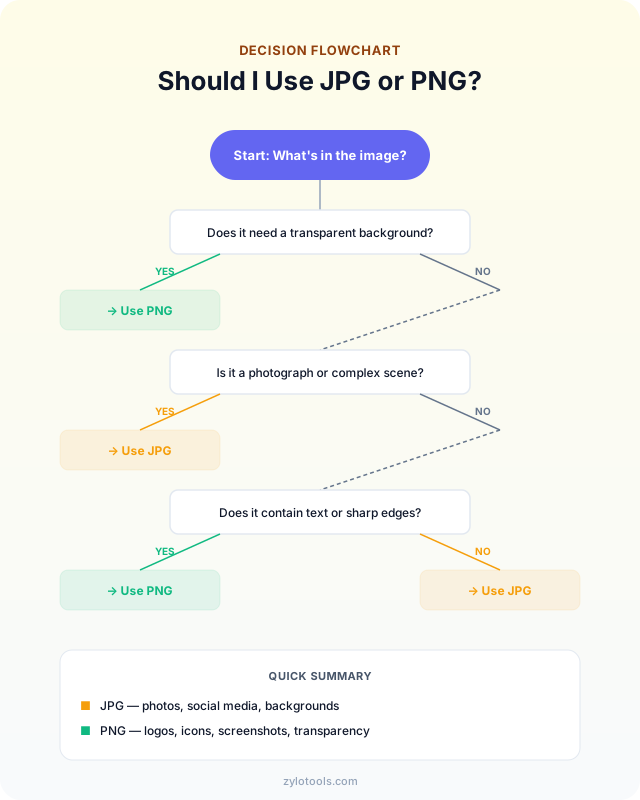
Use this simple flowchart when choosing a format:
- Does the image need transparency? → PNG (or WebP)
- Is it a photograph or complex image? → JPG
- Is it a logo, icon, or graphic with text? → PNG
- Is it a screenshot? → PNG
- Will it be re-edited multiple times? → PNG (working file), JPG (final export)
- Is it for web and you want the smallest possible file? → WebP → JPG → PNG (in order of preference for photos)
Frequently Asked Questions
Which is better for websites — JPG or PNG?
It depends on the content. Use JPG for photographs and complex images — file sizes stay small. Use PNG for logos, icons, screenshots, and anything requiring transparency. Most websites use both formats strategically for different content types.
Does converting PNG to JPG lose quality?
Yes, converting PNG to JPG introduces lossy compression, so some quality is permanently lost. However, at quality settings of 80-90%, the visual difference is minimal for photographs. For graphics with text or sharp edges, the quality loss is more noticeable as artifacts around edges.
Why are PNG files so much larger than JPG?
PNG uses lossless compression — it preserves every single pixel exactly as-is. JPG uses lossy compression that discards visual information humans barely notice. For photographs with millions of subtle color variations, this makes JPG files 5-20× smaller than the equivalent PNG with negligible visible difference.
Can JPG have a transparent background?
No. JPG does not support transparency in any form. If you need a transparent background, use PNG or WebP. When you convert a transparent PNG to JPG, the transparent areas fill with a solid color (typically white unless you specify otherwise).
Which format should I use for social media?
Use JPG for photographs — smaller files upload faster and social platforms re-compress everything anyway. Use PNG for graphics with text overlays, memes, or infographics where you want crisp text rendering without compression artifacts muddying the letters.
Conclusion
The JPG vs PNG choice isn't subjective — it's almost always obvious once you understand the trade-off. Photograph or complex image with gradients? JPG. Logo, screenshot, graphic with text, or anything needing transparency? PNG. It really is that simple.
Where people go wrong is applying a blanket rule. "Always use PNG for quality" destroys page speed. "Always use JPG to save space" destroys logos and text. The winning approach is using both formats for what they're each designed to do.
If you're sitting on a folder of images in the wrong format right now, fixing it takes seconds. Our PNG to JPG converter and JPG to PNG converter both run in your browser — nothing uploaded, instant results. And if you want the best of both worlds for web delivery, read our WebP vs JPG comparison next.
Have images in the wrong format?
Convert between JPG and PNG in seconds. Runs in your browser — your files stay on your device.