Best PDF Compressors: Reduce PDF Size Without Quality Loss
Your PDF is too large for email. You know this because you just hit Send and got an immediate bounce-back. The document is a forty-page report with charts, embedded photos, and a full-colour cover page. Gmail's limit is 25MB. Your file is 38MB.
I deal with this scenario constantly — usually at 5pm on a Friday when someone needs a proposal out the door. The solution takes about ten seconds once you understand what's actually making the file large and which parts can be squeezed without anyone ever noticing the difference.
Most PDFs are bloated not because they contain complex content, but because the software that created them made lazy choices about embedded images and fonts. A typical presentation PDF carries photos at print-level resolution even though it will only ever be viewed on a screen. Strip that unnecessary resolution and you lose nothing visible while cutting the file to a fraction of its original size.
Need it done right now? Drop your PDF here. It compresses in your browser — nothing gets uploaded anywhere. Then come back to this guide when you're curious about the mechanics.
Why PDF Files Get So Large
Before you can effectively compress a PDF, it helps to understand what makes them bloat in the first place. PDFs are container formats — they bundle multiple types of content into a single file. Each content type contributes differently to the overall size.
Embedded Images
Images are the single biggest contributor to PDF file size. When you create a PDF from a presentation, scan documents, or export from a design tool, images are often embedded at their original resolution. A single photograph from a modern camera can be 8-12MB. A presentation with 20 slides, each containing a high-resolution background image, easily produces a 100MB+ PDF. Even screenshots and diagrams, when embedded without optimization, add significant weight.
Embedded Fonts
PDFs embed fonts to ensure documents look identical on any device — even if the recipient does not have those fonts installed. Each font file ranges from 50KB to several megabytes depending on the character set and style variations. A document using four different fonts (regular, bold, italic, monospace) might carry 2-4MB of font data alone. Documents with multiple languages or decorative typefaces carry even more.
Metadata and Hidden Content
PDFs accumulate metadata over their lifecycle: editing history, form field data, JavaScript, embedded thumbnails, cross-reference tables, and annotation layers. These invisible elements add up. A heavily edited document might carry megabytes of revision history that serves no purpose for the final reader. Scanned PDFs often include both the image layer and an invisible OCR text layer, effectively doubling the content.
Vector Graphics and Layers
CAD drawings, architectural plans, and complex illustrations stored as vector paths can generate enormous PDFs despite containing no raster images. Each line, curve, and shape is defined mathematically, and complex technical drawings can contain millions of path definitions. Layer information from design software (Illustrator, InDesign) also persists in PDF exports unless explicitly flattened.
Inefficient PDF Generation
Not all PDF creators are equal. Some applications produce compact, well-structured PDFs while others generate bloated output. Older versions of Word, for example, historically produced PDFs significantly larger than necessary. Virtual print drivers sometimes embed images at 300+ DPI even when the source content is a simple web page. The tool that created your PDF matters as much as the content inside it.
How PDF Compression Works
PDF compression is not a single technique — it is a collection of strategies applied to different elements within the document. Understanding these strategies helps you choose the right settings and understand what trade-offs you are making.
Image Recompression
The highest-impact compression technique targets embedded images. Original images within a PDF might be stored as uncompressed bitmaps or lightly compressed TIFFs. A smart PDF compressor re-encodes these images using modern algorithms (JPEG2000, JBIG2 for monochrome, or Flate compression) at optimized quality levels. An image originally stored at 4000x3000 pixels might be downsampled to 1500x1125 — still perfectly readable on screen and in print at normal viewing distances, but 75% smaller.
Font Subsetting
If a document uses the Arial font but only contains 60 unique characters, there is no reason to embed the entire Arial font file with its 3,000+ glyphs. Font subsetting strips out unused characters, reducing a 200KB font file to perhaps 15KB containing only the characters actually used in the document. This is lossless — the document renders identically.
Object Stream Compression
PDFs store content as discrete objects (text blocks, images, form fields, bookmarks). These objects can be compressed individually using deflate or LZW algorithms, or grouped into compressed object streams where related objects are stored together for better compression ratios. Think of it like packing a suitcase — individual items compressed in bags versus everything packed together in a vacuum-sealed bag.
Structural Optimization
Over time, PDFs accumulate orphaned objects — elements that were deleted from view but still exist in the file structure. Linearization rearranges objects for optimal streaming (so the first page loads before the entire document downloads). Cross-reference table rebuilding removes bloated revision tables. These structural changes can reduce size by 5-15% without touching visible content.
Why I always test with the cover page first
Whenever I compress a multi-page PDF, I check page one first. The cover page usually has the largest images (full-bleed photos, company logos at absurd resolution) and any quality loss shows up there most visibly. If the cover page looks good after compression, the interior pages — which are mostly text, charts, and smaller graphics — will be fine. This takes five seconds and prevents any "I compressed it and now it looks terrible" surprises.
Metadata Stripping
Removing unnecessary metadata — editing history, application-specific data, embedded thumbnails, and redundant information — provides free size reduction with zero quality impact. A document that has been edited 50 times in Acrobat might carry megabytes of incremental save data. Stripping this produces a clean, compact file that looks and functions identically.
Step-by-Step Guide to Compressing PDFs
Here is the practical workflow for compressing PDFs using a browser-based tool. This approach works on any operating system and requires no software installation.
Step 1: Assess Your PDF
Before compressing, check what you are working with. Right-click the file and check its properties. A 2MB text-only PDF will not compress much further, but a 50MB presentation PDF packed with images has enormous compression potential. Knowing your starting point sets realistic expectations.
Step 2: Choose Your Compression Level
Most quality PDF compression tools offer preset levels: light (minimal quality reduction, 20-40% size reduction), medium (barely noticeable quality change, 50-70% reduction), and heavy (visible quality trade-offs, 70-90% reduction). For sharing documents via email or uploading to web portals, medium compression is usually the sweet spot.
Step 3: Upload and Process
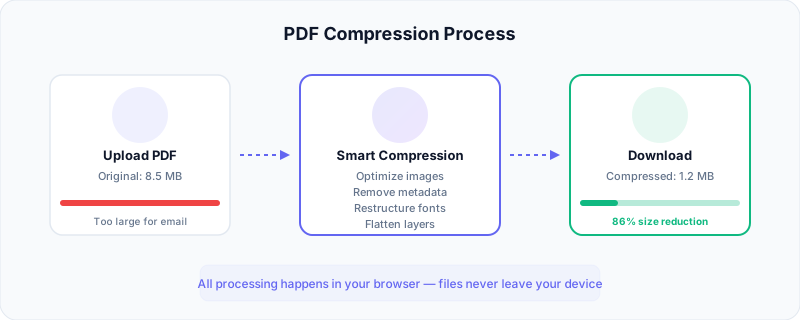
Drag your PDF into the compression tool. Browser-based tools like Zylo Tools process the file entirely within your browser — your document never leaves your device, which matters for confidential business documents, legal files, or anything containing personal information.
Step 4: Review the Output
Open the compressed PDF and spot-check critical pages. Look at pages with detailed charts, small text, photographs, and fine lines. If anything looks degraded beyond what you find acceptable, try a lighter compression setting. Most documents look identical after medium compression — the differences only become apparent under pixel-level comparison.
Step 5: Verify Functionality
Compression should preserve functionality, not just appearance. Check that hyperlinks still work, form fields remain fillable, bookmarks navigate correctly, and any embedded media still plays. A good compressor preserves these interactive elements while reducing the underlying data size.
Step 6: Replace and Archive
Save the compressed version for distribution. If you anticipate needing the full-quality original later (for reprinting at large format, for example), keep it archived separately. For most use cases — email sharing, web hosting, cloud storage — the compressed version is your new working copy.
Compression Methods Compared
There are several approaches to PDF compression, each with distinct advantages. Here is how they compare across the factors that matter most:
| Method | Best For | Compression | Privacy | Cost |
|---|---|---|---|---|
| Online tools (browser-based) | Quick one-off compression, any device | 50-85% | High (client-side) | Free |
| Desktop software | Batch processing, advanced control | 60-90% | High (local) | $50-300+ |
| Command-line tools | Automation, scripting, bulk operations | 50-90% | High (local) | Free (open source) |
| Built-in OS tools | Simple compression, no installation | 30-60% | High (local) | Free |
Online Browser-Based Tools
Tools like Zylo Tools PDF Compressor run entirely in your browser using WebAssembly and JavaScript. Your file never leaves your device — the compression happens locally. This makes them ideal for sensitive documents, quick one-off tasks, and situations where you cannot install software (work computers, shared machines). The trade-off is that very large files (500MB+) may be slow to process in-browser.
Desktop Software
Adobe Acrobat Pro, Nitro PDF, and similar desktop applications offer the most granular control. You can set exact DPI targets for images, choose specific compression algorithms per image type, and batch-process thousands of files. These tools justify their cost for organizations that process PDFs daily, but are overkill for occasional compression needs.
Command-Line Tools
Ghostscript and QPDF are powerful open-source options for developers and system administrators. They can be integrated into automated workflows — compressing PDFs as they are uploaded to a server, processing nightly batches, or integrating into document management pipelines. The learning curve is steep, but the flexibility is unmatched.
Built-in OS Tools
macOS Preview can export PDFs with a "Reduce File Size" quartz filter. Windows has limited built-in options (Print to PDF sometimes reduces size). These tools offer minimal control and often produce mediocre results — over-compressing images while leaving other optimizations untouched — but they require zero setup for quick-and-dirty compression.
Tips for Maximum Compression Without Quality Loss
Getting the best results from PDF compression requires understanding a few principles that separate acceptable results from excellent ones.
Start with the Source
The most effective compression happens before the PDF is created. If you are exporting from PowerPoint, Word, or InDesign, optimize your images before placing them in the document. A presentation built with properly sized images (1920x1080 for full-slide backgrounds) produces a naturally compact PDF. Placing 4000x3000 photographs and letting the PDF handle them guarantees bloat.
Target Images First
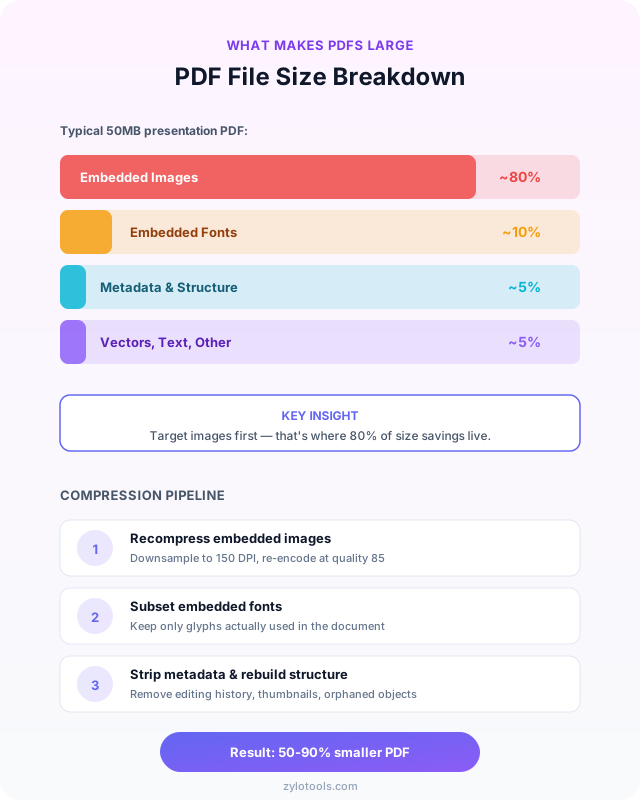
Since images account for 80-95% of file size in most bloated PDFs, focus your compression efforts there. Set image quality to 85% for documents viewed on screen (indistinguishable from originals) or 72 DPI for web-only documents. Preserve 150+ DPI if the document will be printed. This single setting produces the most dramatic size reduction.
Use Format-Appropriate Compression
Different image types within a PDF benefit from different algorithms. Photographs compress best with JPEG/JPEG2000. Line art and text graphics benefit from JBIG2 (monochrome) or PNG/Flate (color with sharp edges). A smart compressor analyzes each image and applies the optimal algorithm rather than forcing one approach on everything.
Preserve Vector Content
Charts, diagrams, and logos stored as vectors take minimal space and scale perfectly. Never rasterize vector content during compression — it increases file size while reducing quality. If your compressor has a "flatten" option, understand that it converts vectors to bitmaps. Only use this when absolutely necessary for compatibility reasons.
Remove What You Do Not Need
Before compressing, consider whether your PDF contains unnecessary content. Embedded multimedia, JavaScript, form field data from previous submissions, and attached files all add weight. If the recipient only needs to read the document, stripping interactive elements is a free size reduction. You can also split the PDF to remove pages that are not needed for a particular recipient.
Compress Once, Not Repeatedly
Each compression pass introduces some level of generation loss (similar to re-saving a JPEG). Compressing an already-compressed PDF produces diminishing returns and cumulative quality degradation. Always work from the highest-quality version and compress once to your target size rather than iteratively recompressing.
One mistake I made early on
I used to think compressing a PDF inherently ruined it. That's because my first attempts used maximum compression on documents full of detailed architectural drawings. Those thin lines and precise dimensions turned into mush. What I didn't realize: the problem wasn't compression itself — it was applying photo-compression settings to vector line work. Modern tools handle different content types within the same PDF separately. Text stays sharp. Vectors stay clean. Only the embedded photographs get recompressed, and only at levels where the difference is invisible at normal viewing zoom.
The vast majority of a PDF's file size — often 80% or more — comes from embedded images, not from text or vector content. A hundred-page text document might be half a megabyte. Add one full-resolution photograph per page and it balloons past 50MB. Targeting images first gives you the majority of your size savings with zero impact on text clarity.
Common PDF Compression Mistakes
These are the errors that consistently produce poor results — either inadequate compression or unnecessary quality loss.
Using Maximum Compression on Everything
Cranking compression to the highest level sounds logical — smaller is better, right? In practice, aggressive compression on documents with fine details (architectural plans, medical images, detailed charts) produces artifacts that make the document less useful. A building plan with blurred dimension text or a medical scan with compression artifacts defeats the purpose of having the document at all. Match compression level to content sensitivity.
Ignoring DPI Settings
DPI (dots per inch) determines the resolution of embedded images. Setting DPI too low creates visibly pixelated images. Setting it too high wastes space. The appropriate DPI depends entirely on how the document will be used: 72 DPI for screen-only viewing, 150 DPI for standard printing, 300 DPI for high-quality printing. A common mistake is leaving DPI at 300 for a document that will only ever be viewed on screen — triple the necessary resolution with no benefit.
Compressing Scanned Documents Without OCR
Scanned PDFs are essentially collections of full-page photographs. Compressing the image is necessary, but you should also apply OCR (optical character recognition) to create a searchable text layer. The text layer adds negligible size while making the document searchable and enabling mixed-mode compression — where the text rendering is handled separately from photographic elements.
Forgetting to Check Functionality After Compression
Some compression methods strip interactive elements: hyperlinks, form fields, bookmarks, digital signatures. Always open the compressed file and verify that interactive elements still work. A compressed PDF that can no longer be filled out or whose links are broken has been damaged, not optimized.
Re-compressing Already Optimized Files
Running an already-compressed PDF through compression again rarely helps and often hurts. If a PDF was created by a modern tool with reasonable settings, its images are already well-compressed. Running it through another compression pass degrades image quality without meaningful size reduction. Check the file size relative to page count — if it is already reasonable (under 1MB per page for image-heavy content, under 100KB per page for text-heavy content), additional compression offers diminishing returns.
Using Server-Upload Tools for Sensitive Documents
Uploading confidential PDFs to server-based compression services means your documents exist on someone else's infrastructure, even temporarily. For contracts, financial statements, medical records, or legal documents, use client-side tools that process locally. The browser-based PDF compressor approach keeps your files on your own device throughout the entire process.
When You Need to Compress PDFs
PDF compression is not always necessary, but certain scenarios make it essential. Here are the real-world situations where compression delivers the most value.
Email Attachments
Email providers impose strict attachment limits: Gmail caps at 25MB, Outlook at 20MB, and many corporate email servers limit attachments to 10MB. When your quarterly report, presentation deck, or contract exceeds these limits, compression is the fastest solution. A 35MB presentation with embedded product photos typically compresses to 8-12MB — well within any provider's limits while remaining perfectly readable.
Upload Portals and Web Forms
Job application portals, government filing systems, insurance claim submissions, and university admissions often impose 5-10MB upload limits. Scanning official documents at high resolution easily exceeds these limits. Compressing scanned documents (with appropriate quality preservation) lets you submit without quality concerns. This is also relevant when you need to convert JPG scans to PDF — optimizing image quality before conversion prevents bloated output.
Web Hosting and Downloads
If you host PDFs on your website — product catalogs, whitepapers, documentation, or reports — their file size directly impacts user experience. A visitor clicking a PDF link expects it to open quickly. A 50MB product catalog that takes 30 seconds to load on a mobile connection will be abandoned. Compressing it to 5MB makes it load almost instantly. For images within those documents, consider whether the image compressor can optimize source images before they go into the PDF.
Cloud Storage Optimization
Organizations storing thousands of PDFs in SharePoint, Google Drive, or Dropbox accumulate massive storage costs. A legal firm with 50,000 case documents averaging 20MB each uses 1TB of storage. Compressing those to 5MB average drops storage to 250GB — meaningful cost savings at scale, especially with premium cloud storage pricing.
Archival and Long-Term Storage
Documents you need to keep for compliance or reference but rarely access are prime candidates for aggressive compression. Tax records, completed project files, and historical documents can be compressed more heavily since they will only be opened occasionally. The space savings compound over years of accumulation.
Mobile Access
Field workers, sales representatives, and consultants who access documents on tablets and phones benefit enormously from compressed PDFs. Opening a compact PDF on a phone is nearly instant; opening a 30MB file requires patience and reliable connectivity that field conditions rarely provide. If your team accesses documents in the field, compression is not optional — it is necessary for productivity.
Frequently Asked Questions
How much can you compress a PDF without losing quality?
Most PDFs can be compressed by 50-90% without any noticeable quality loss. The exact reduction depends on the content — PDFs with high-resolution images and embedded fonts see the largest reductions (often 80%+), while text-heavy documents with minimal graphics typically compress by 30-50%. The key is using smart compression that applies different algorithms to different content types within the document rather than treating the entire file uniformly.
Does compressing a PDF reduce image quality?
It depends entirely on the compression method and settings used. Smart compression tools distinguish between text, vector graphics, and raster images within a PDF. Text and vectors remain perfectly sharp since they are resolution-independent. Images can be recompressed at quality levels (85-95%) where differences are invisible to the human eye, or more aggressively if maximum size reduction is the priority. The choice is yours — most tools let you preview results before committing.
What is the best free PDF compressor?
Browser-based PDF compressors offer the best combination of convenience, privacy, and quality for most users. They process files directly in your browser without uploading to external servers, work on any operating system (Windows, Mac, Linux, mobile), and require no software installation or account creation. Look for tools that offer adjustable compression levels and provide immediate before/after size comparisons so you can find the right balance for each document.
Can I compress a PDF for email?
Yes — this is one of the most common reasons people compress PDFs. A 30MB presentation can often be compressed to 5-8MB without visible quality loss, easily fitting under Gmail's 25MB limit or Outlook's 20MB limit. For very large files that remain over the limit even after compression, you can split the PDF into logical sections before sending, or combine moderate compression with image downsampling to achieve greater reduction.
Is it safe to compress PDFs online?
Browser-based PDF compressors that use client-side processing are completely safe — your files never leave your device. The compression algorithms run locally in your browser using JavaScript and WebAssembly, with no server upload required. This is fundamentally different from services that require file uploads to remote servers. For sensitive documents (contracts, financials, medical records), always verify that the tool processes locally by checking if it works offline or reviewing its privacy documentation.
Conclusion
PDF compression is a solved problem — the tools exist, they are free, and they work well. The difference between people who struggle with oversized PDFs and those who do not is simply knowing the right approach: use smart compression that targets images and fonts while preserving text fidelity, choose appropriate quality settings for your use case, and verify results before distributing.
For most situations — email attachments, upload portals, web hosting, and everyday sharing — medium compression produces files that are 60-80% smaller with no perceptible quality loss. That is the difference between a document that bounces back as too large and one that sends instantly.
The fastest path from an oversized PDF to a perfectly compressed one takes about ten seconds with the right tool. No software to install, no account to create, no files uploaded to distant servers. Just drop your PDF in, let the algorithms work, and download a file that goes anywhere you need it to go.
Ready to Compress Your PDFs?
Reduce PDF file size by up to 90% without losing quality. Free, private, and instant — no upload required.
Compress PDF Now